
Mission replay
Open Mission replay with Open flight from a device row or local row in Flight logs readout. The page shows the source, sample count, a Replay badge, and current elapsed time over total duration. Replay starts at the beginning and is paused.
Flight estimates
Section titled “Flight estimates”The Flight estimates panel below the phase panel compares the flight with the estimates it flew with:
- Settings used for this flight: the four flight-estimation values from the log, written as
Settings.inilines so you can copy them back. - How the flight compared: for example Estimated 320 m (224–416 m), flew 285 m: inside the margin. Height is measured from the launch point. A warning appears when the rocket flew faster than the speed estimate; raise the speed estimate for the next flight.
- Suggested for next flight: new values based on this flight, for the same rocket and motor. Not shown after a flight lower than 10 m.
This needs firmware v1.2.3 or later, which saves the estimates in each flight log. Older logs show a short note instead.
Timeline and telemetry
Section titled “Timeline and telemetry”The phase panel shows the current state and detected state transitions. Select a transition marker to seek directly to it; seeking pauses playback. The current state is highlighted.
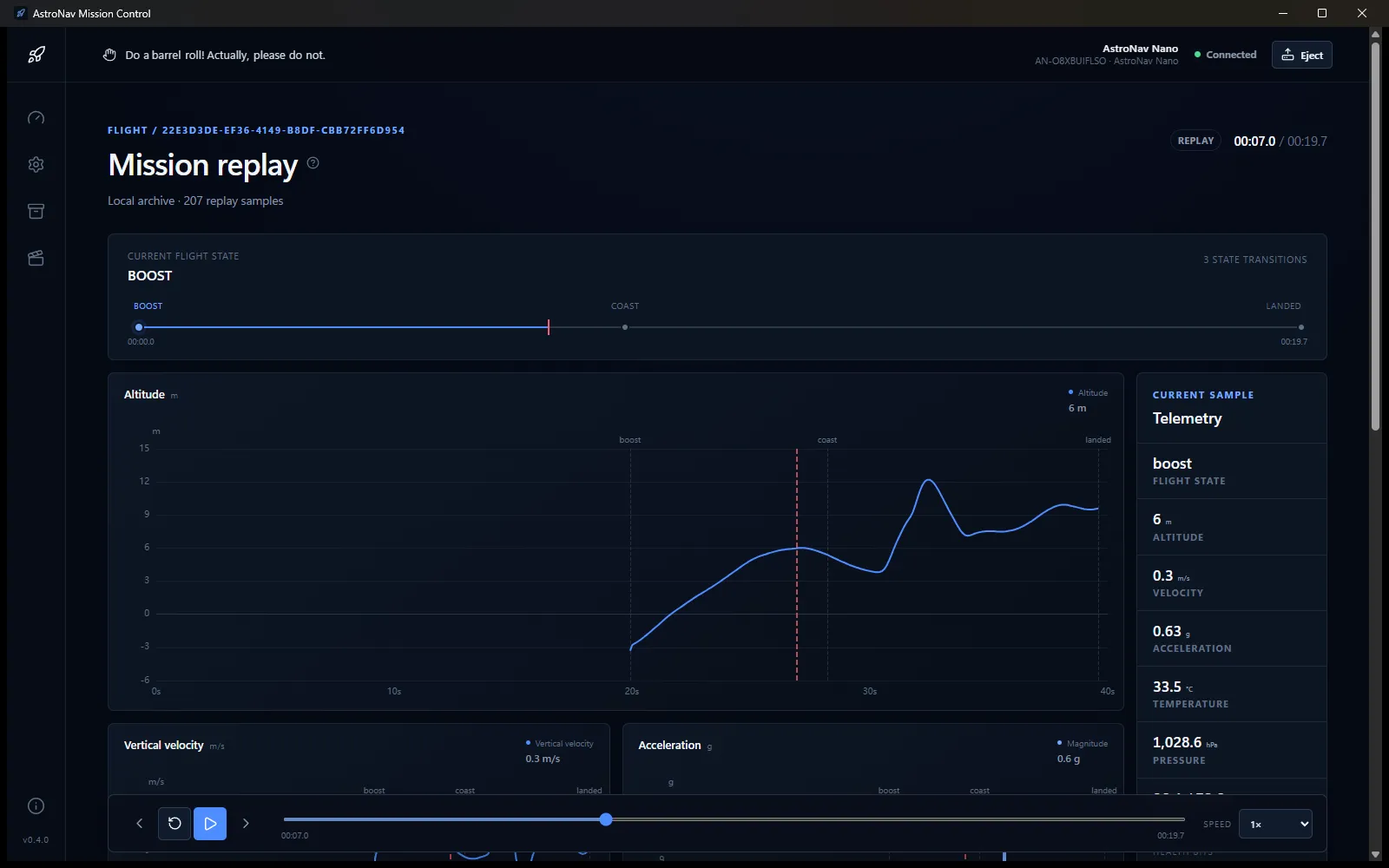
Charts update together as the replay cursor moves:
- Altitude in m
- Vertical velocity in m/s
- Acceleration in g
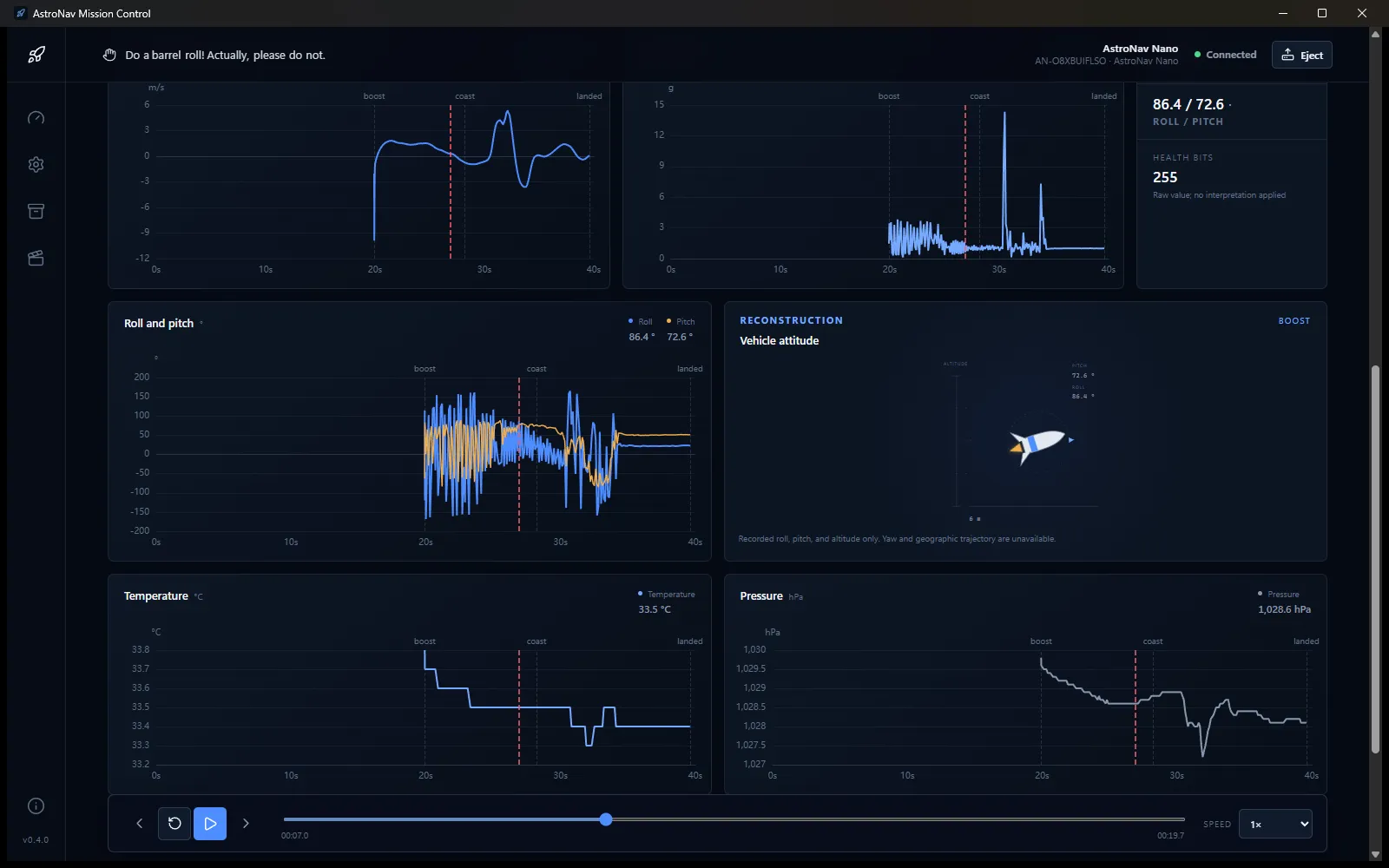
- Roll and pitch in degrees
- Temperature in deg C
- Pressure in hPa
Each chart shows its unit, current reading, transition markers, and a red cursor line. Hover over a chart to inspect values at a time position. Missing values are shown as unavailable rather than zero.
The Current sample panel reports flight state, altitude, vertical velocity, acceleration magnitude, temperature, pressure, roll/pitch, and raw health bits. The raw health value has not been interpreted by the UI.
Vehicle attitude view
Section titled “Vehicle attitude view”The Vehicle attitude panel is an indicative reconstruction based only on recorded altitude, pitch, and roll. The rocket moves vertically within the displayed altitude range, rotates for pitch and roll, and shows an active exhaust indicator while the recorded state is boost.
Playback controls
Section titled “Playback controls”| Control | Action |
|---|---|
| Previous state transition | Pause and seek to the previous detected transition |
| Restart replay | Pause and return to the first sample |
| Play/Pause | Start or pause playback |
| Next state transition | Pause and seek to the next detected transition |
| Timeline slider | Pause and seek to any timestamp |
| Speed selector | Choose 0.25x, 0.5x, 1x, 2x, or 4x playback |
Playback follows recorded timestamps, stops at the final sample, and does not query the device while playing.
Data-quality warnings
Section titled “Data-quality warnings”Expand Data-quality warnings below the controls to inspect each warning’s code, message, and source row when available. Warnings do not necessarily prevent replay, but they should be considered when interpreting chart gaps or unusual values.
Understanding values
Section titled “Understanding values”- Unknown means the device or log did not provide a value.
- A dash in a loading count means the query has not completed.
- Values use metric units: meters, meters per second, g, degrees, deg C, and hPa.
- Replay acceleration is the magnitude of the recorded X/Y/Z acceleration vector.
- Chart data is bounded or downsampled for display; replay is for inspection, not raw-data export analysis.
- Imported archive data remains available without a connected Nano.
Errors and recovery
Section titled “Errors and recovery”- Read the message in the red error area.
- Check that the device is still mounted and in USB storage mode when the operation uses the device.
- Retry the operation.
- For a bad log, use the per-log error and data-quality warning details to identify the affected file or row.
If the interface encounters an unexpected rendering error, it displays The interface encountered an error, the error message, and Reload application. Additional diagnostics are written to:
%APPDATA%\\com.astronav.missioncontrol\\logs\\discovery.log