
Flight logs readout
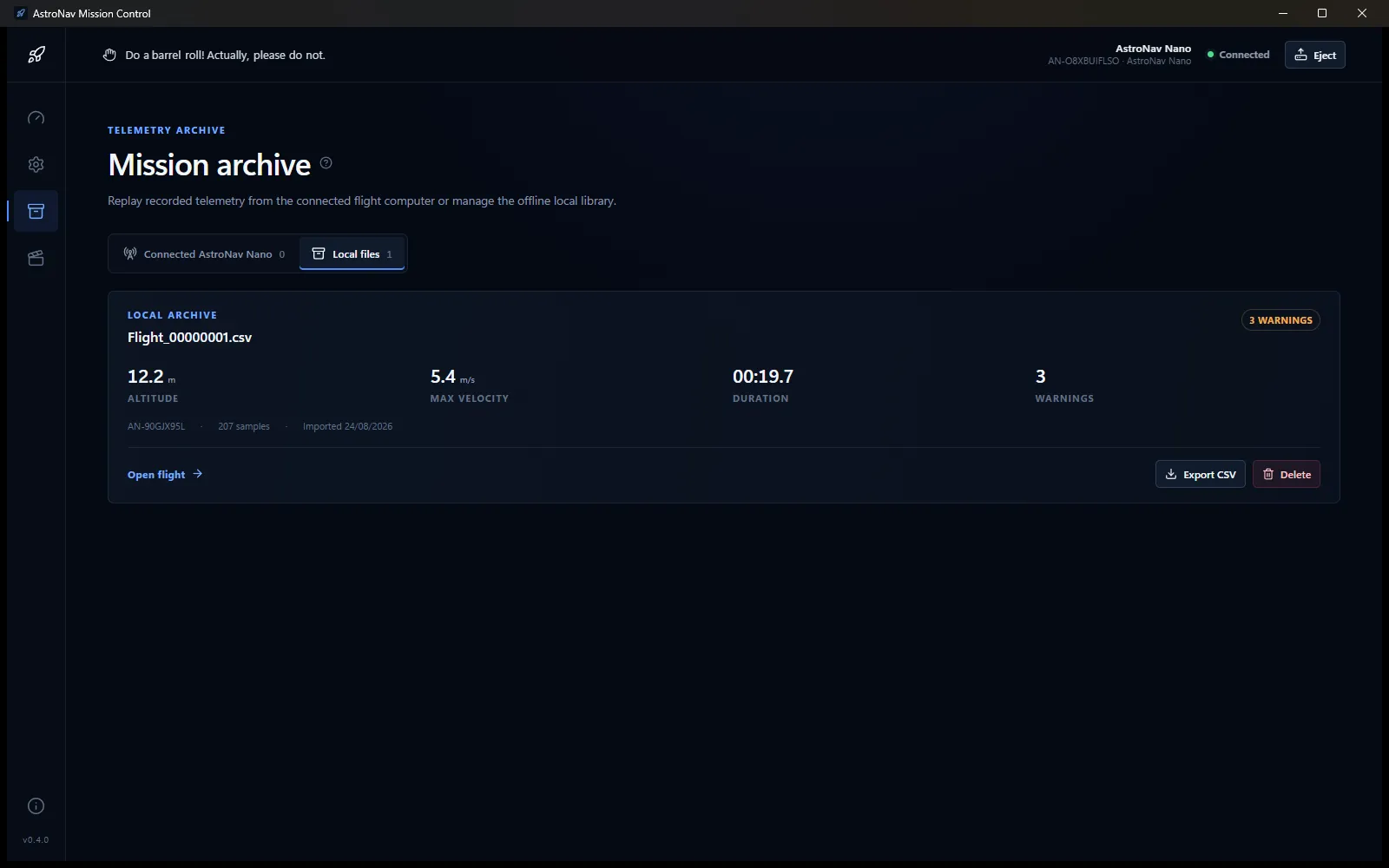
The Flights page has two tabs:
- Connected [model] - logs currently stored on the selected device.
- Local files - flights imported into the application’s archive.
Counts may show a dash while data is loading.
Connected device logs
Section titled “Connected device logs”Each row shows the source filename, device model, Imported, Device log, or Unreadable status, altitude, maximum velocity, duration when analysis is available, and device serial number when available.
For a readable log:
- Open flight opens Mission replay directly from the device.
- Import locally copies the flight into the local archive while leaving the device log in place.
- Delete file removes the log from the device after confirmation.
An imported device log cannot be imported again, but it can still be opened from the device and managed in the local tab.
Unreadable logs
Section titled “Unreadable logs”Unreadable logs show the read or analysis error and have no replay or import action. Invalid CSV content, missing or invalid timing data, unsupported values, or another read error can make a log unreadable.
Local archive files
Section titled “Local archive files”Each local row shows the source filename, Nominal or the number of data-quality warnings, maximum altitude, maximum velocity, duration, source device serial number, sample count, and import date.
- Open flight opens Mission replay from the local archive.
- Export CSV opens a save dialog and writes a CSV copy. The dialog defaults to the source filename and filters for CSV files.
- Delete removes the local archive entry after confirmation. It does not affect the original device log.
Empty and unavailable states
Section titled “Empty and unavailable states”- Local library is empty means no flight has been imported yet.
- Connected flight computer unavailable means the device-log query failed; the local library remains usable.
- No device flight logs means the selected computer exposes no logs.
- A loading message appears while either source is being read.
Recommended workflow
Section titled “Recommended workflow”- Open Flights and select Connected [model].
- Confirm that the log is readable.
- Select Import locally to preserve a copy.
- Open the local flight when offline review is needed.
- Use Mission replay to inspect telemetry and flight phases.
- Export CSV for external analysis when required.
- Delete the local copy only when it is no longer needed.