
Device settings
Settings are read from the connected device’s Settings.ini. The page is unavailable without a selected device or when the file cannot be read.
Supported settings
Section titled “Supported settings”| Field | Meaning | Allowed value |
|---|---|---|
| Estimated altitude | Expected flight altitude | 0 or greater, in m |
| Altitude margin | Extra allowance around the altitude estimate | 0 to 1000, in m |
| Estimated speed | Expected vertical speed | 0 or greater, in m/s |
| Speed margin | Extra allowance around the speed estimate | 0 to 1000, in m/s |
| Launch threshold | Acceleration threshold used to detect launch | 1.15 to 4.00, in g |
| Fire apogee pyro | Enables the apogee pyro output | Enabled or disabled |
| Minimum pyro height | The pyro never fires unless the rocket climbed at least this high above the launch point | 0 to 10000, in m (default 5) |
The settings are grouped into Flight estimation, Launch detection and Recovery. Each group has a What these settings do link to the matching wiki section.
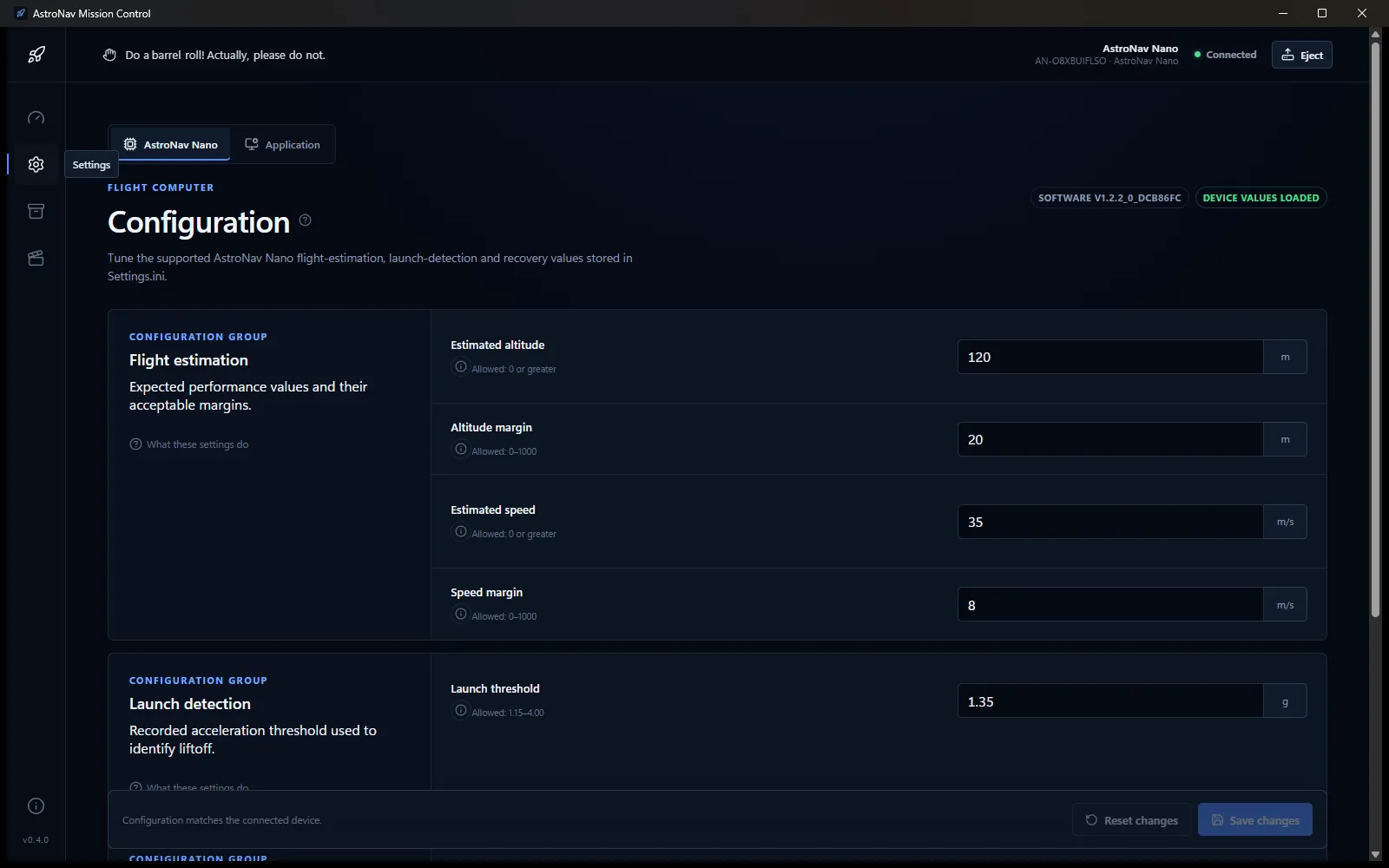
The header shows Device values loaded when the form matches the device and Unsaved changes when a value differs.
Flight estimator
Section titled “Flight estimator”Not sure what to enter for the four flight-estimation values? Select Help me estimate in the Flight estimation group.
- Enter the Liftoff weight (the rocket ready to fly, with the motor installed) and the motor’s Total impulse (on the shop page or the motor’s data sheet).
- Optionally open More accuracy (optional) and add the average thrust, body diameter, propellant weight and drag. Where do I find this? explains motor codes such as
C6-5. - Check the expected apogee and top speed, and any warnings.
- Select Use these values. This only fills in the form: select Save changes and eject the Nano to apply them.
The estimate is rough, with a 30% margin on each value. The speed is always rounded up, because a speed estimate that is too low is the one risky direction. After a flight, Mission replay shows how good the estimate was and suggests values for the next flight.
Edit and save settings
Section titled “Edit and save settings”- Confirm the selected device and serial number.
- Review the allowed range for each value.
- Change only the required values.
- Confirm that no validation errors are shown.
- Select Save changes.
- Verify that the header returns to Device values loaded.
Numeric input accepts either a period or a comma for decimals. Blank, non-finite, and out-of-range values are invalid and disable Save changes.
- Save changes writes the edited values to the device.
- Reset changes restores the values last read from the device.
- Saving is disabled while values are invalid, unchanged, or another save is in progress.
AstroNav MC preserves the configuration document, writes a local recovery copy, replaces the device settings, flushes the write, and verifies the result by reading it back.
Apply settings: eject the device
Section titled “Apply settings: eject the device”The Nano applies saved settings only after the drive is ejected. AstroNav MC has an Eject button next to the device name in the top bar:
- Save your changes.
- Select Eject.
- Wait until the top bar shows Ejected · safe to unplug. The Nano has now left USB storage mode and applied the settings.
- Unplug the Nano, or reconnect it if you want to check the values again.
AstroNav MC finishes all writes, releases the drive and sends the eject command, the same as Eject in the file manager. It never forces the drive off:
- If another program still has a file open on the drive, nothing is ejected and a message asks you to close it, for example a File Explorer window showing the Nano.
- Eject waits until nothing else runs. Finish a settings save, flight import, video export or firmware update first.
- On Linux, ejecting uses udisks (
udisksctlandgdbus), which desktop distributions include.
Settings conflicts
Section titled “Settings conflicts”If another process changes Settings.ini after the page loaded it, saving can fail with a settings conflict. Select Reload device values, review the current values, reapply the intended edits, and save again. Do not continue using stale values after a conflict.
Device information and diagnostics
Section titled “Device information and diagnostics”Advanced device info contains read-only profile data: serial number, software/version, checksum, flash stamp, flight count, log count, maximum flight altitude and speed, and last-flight altitude and speed.
Diagnostics contains fault reason, runtime mode, device state, power mode, input voltage, health bits, health flags, and individual component checks. Each check is marked Pass, Fail, or Unknown.